Your Activity Timeline
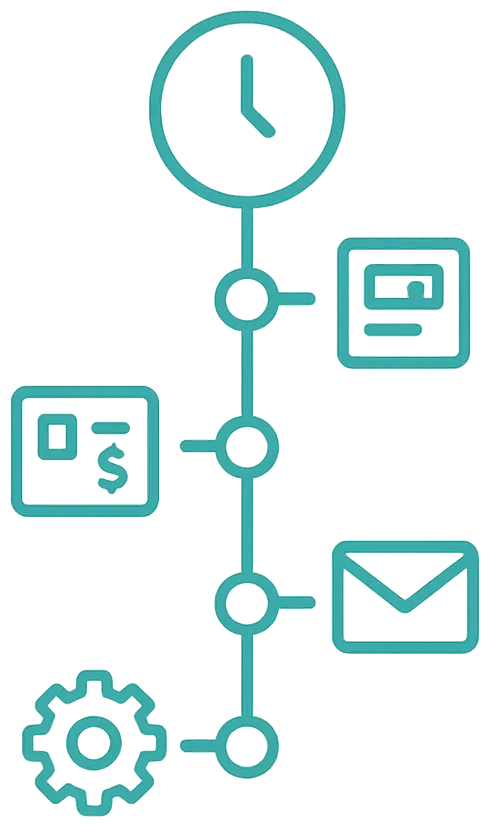
Full transparency — Every action in Airflow is logged. Nothing happens in the dark.
Every action, recorded
Airflow maintains a detailed activity log of everything that happens in your account. This isn't just for auditing — it's how you stay on top of a busy hosting operation without needing to check every booking, invoice, and email manually.
What gets logged
Booking events
- New booking created (from email forwarding or direct booking)
- Booking modified (dates, pricing, guest count changed)
- Booking cancelled
- Booking status changes (pending → confirmed → checked in → checked out)
Financial events
- Draft invoice created in your accounting software
- Invoice updated (modification or FX rate refresh)
- Payment received from guest
- Credit consumed for an action
Communication events
- Booking confirmation email sent to guest
- Automated pre-arrival email triggered
- Guest portal link generated and delivered
- Manual email sent from booking detail page
System events
- Settings updated (organisation, resource, or account)
- Connection established (Gmail, Xero, Stripe, etc.)
- Calendar sync completed
- Account Manager action performed
How to use the activity log
The activity log is available from your portal's Activity page. Each entry shows:
- What happened — the action type and a clear description
- When — timestamp in your local timezone
- Which booking — linked to the relevant booking when applicable
- Which resource — which property was affected
- Credit cost — whether the action consumed credits (and how many)
You can filter by action type, date range, and resource to find specific events.
Why this matters
When a guest asks "did you send me the check-in details?", you don't need to guess. When your bookkeeper asks "was that invoice updated?", you can show them. When you're reviewing your month, the timeline tells the complete story.
Every account-changing action is logged — this is a core design principle, not an afterthought.
Related help articles
- How Booking Extraction Works — What generates booking events
- Automatic Accounting Sync — What generates invoice events
- Automated Guest Communications — What generates email events
Previous: The Guest Portal Experience Next: Guest Payments & Deposits